
Cortex Service Public API – Overview & Setup
This page explains how to:
Access the Public API Documentation
Configure authorization for users
Set up ID mapping between Cortex Service and external systems
1. Public API Documentation Page 📘
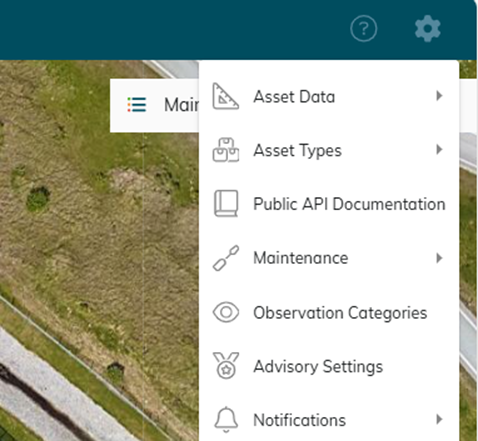
You can access the Public API Documentation directly from your Cortex Service workspace:
Go to Settings
Select Public API Documentation
On this documentation page, you’ll find a comprehensive list of all available request types that can be used with the API.
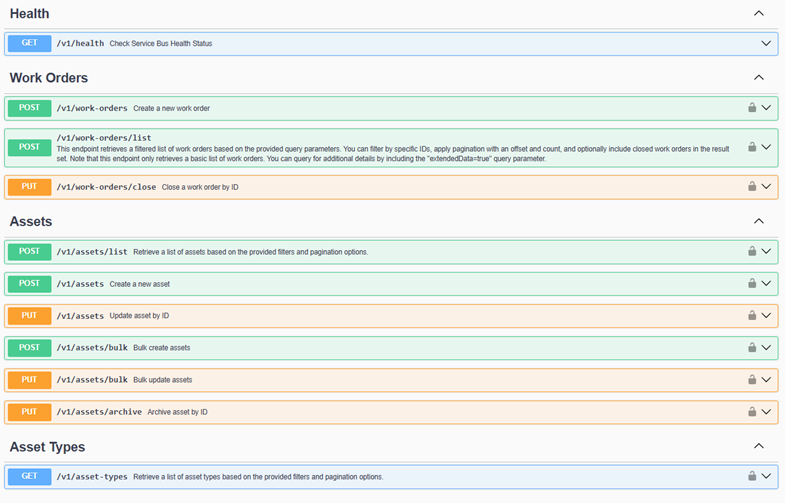
For each request, the documentation provides:
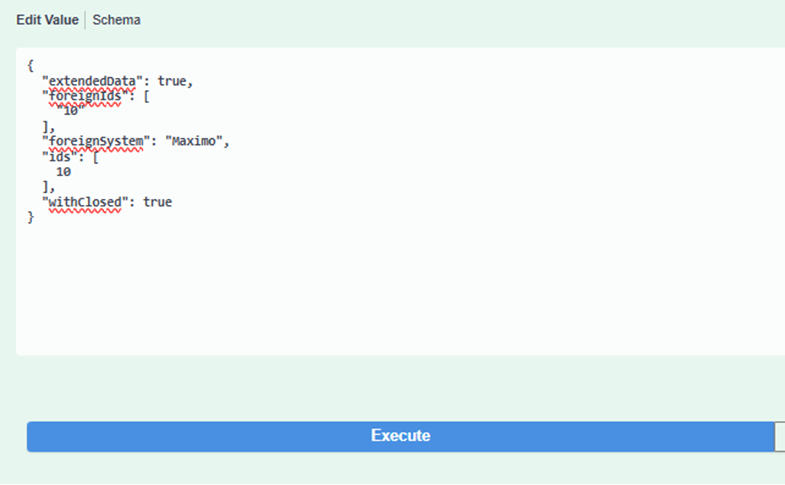
An example request body (JSON format)
The required schema for making the call
Note: The example data shown is not real data. You can, however, test the requests using your own actual values.
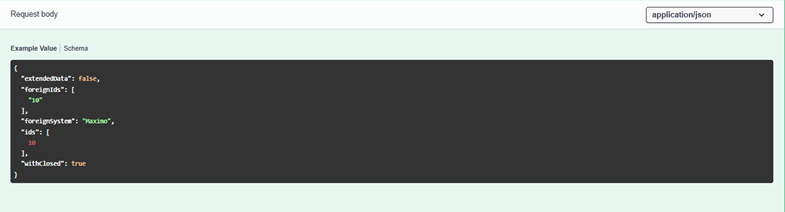
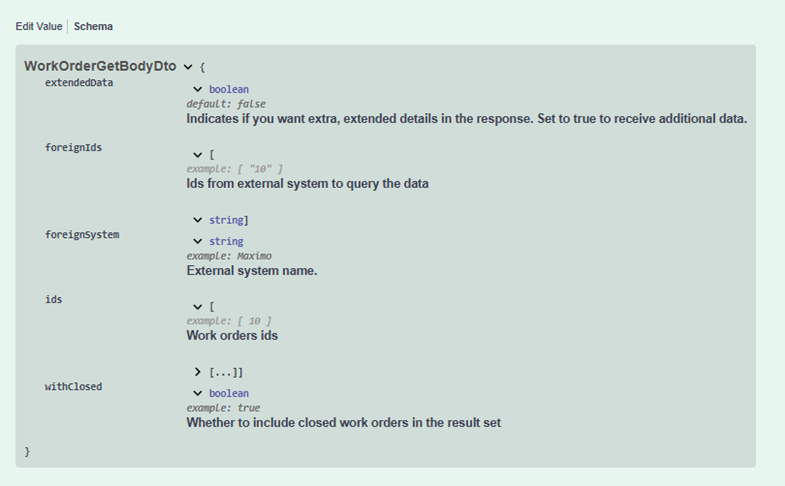
To try out any of the requests, you must first add an Authorization header using your Cortex Service credentials.
For more details on credentials and permissions, see Section 2 – Authorization.
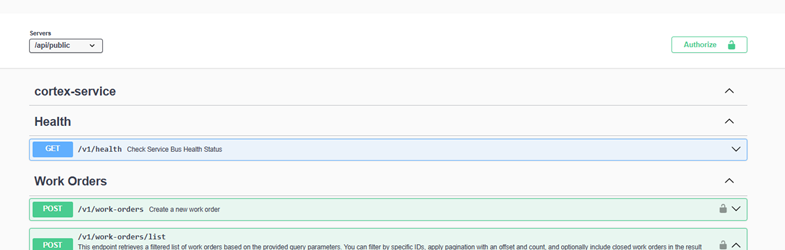
You can:
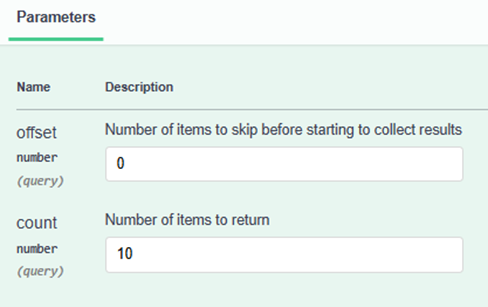
Experiment with different payload structures and parameters
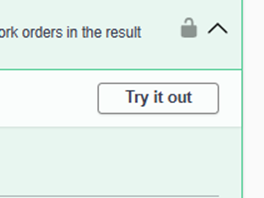
Send test requests directly from the documentation page
View the various responses returned by the API in real time
2. Authorization 🔐
To allow a user to access the Public API with their own credentials, the following steps are required.
Assigning the Required Permission
Ensure the user has the correct permission assigned to their account:
Open the Manage Users page
Go to View/Edit User
Check the Effective Permissions tab
Verify that the required permission for Public API access is assigned
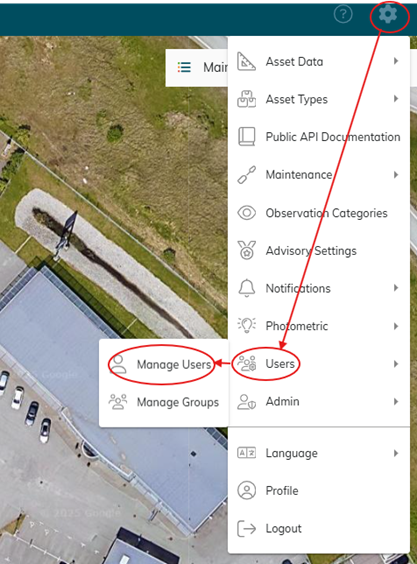
If you cannot see the Manage Users feature, please contact your maintenance manager.

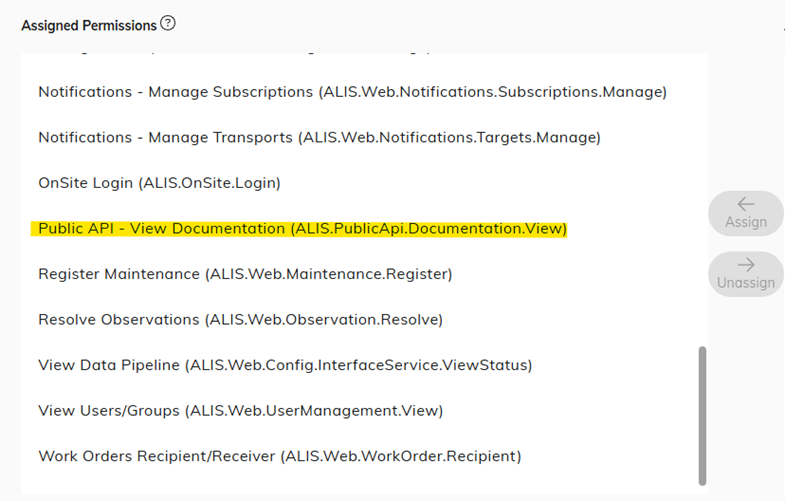
If the permission is not present, please contact your maintenance manager so they can add the necessary permission for you.
Setting User Credentials
On the same Manage Users page:
Open the Credentials tab
Set the user’s password
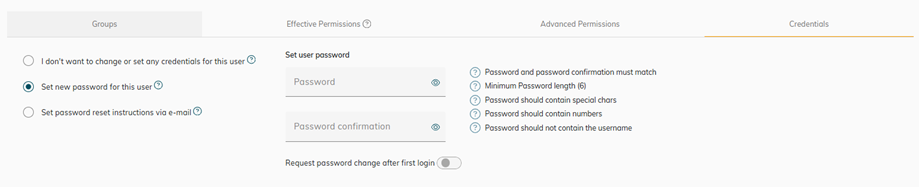
This enables Basic Authentication with a username and password for the API.
3. Mapping IDs from Cortex Service 🔗
Cortex Service provides a built-in Mapping Table that allows a mappiing of asset IDs and work order IDs to IDs from other systems.
Initial ID Mapping (One-Time Setup)
For the initial mapping, please complete the following Excel templates provided by the CORTEX Service team:
CORTEX Service Asset Overview
CORTEX Service WorkOrder List Summary
In each Excel sheet:
Enter the name of your system in the
foreignSystemcolumnEnter the corresponding asset or work order ID from your system in the
foreignIdcolumnEnsure these map correctly to the assets and work orders that already exist in Cortex Service
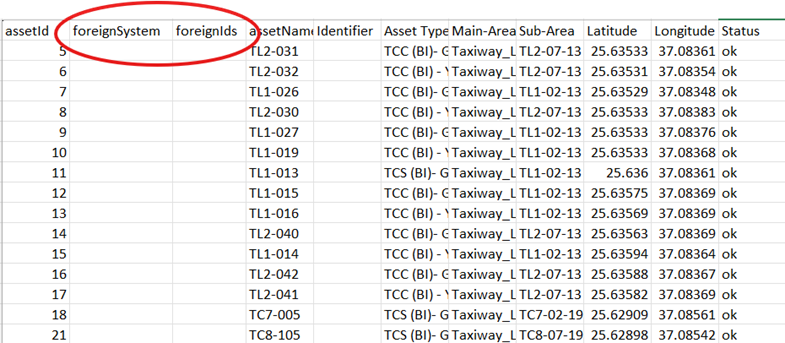
Once the Excel sheets are completed, send them to us.
We will upload the data into the Mapping Table, after which you can begin integration testing and development.
Note: Any assets and work orders added directly through the REST API will be automatically mapped in the table.
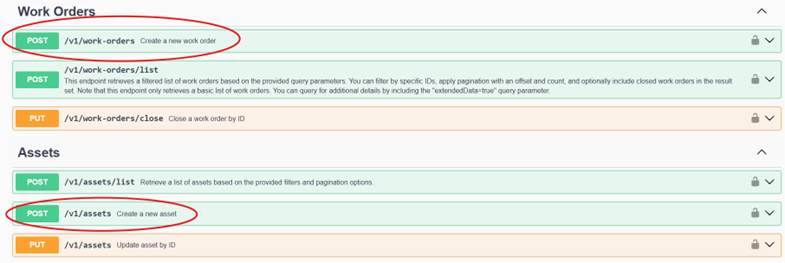
Therefore, the Excel-based mapping is required only once for the initial setup. ✅
4. Support & Contact ☎️
If you have any questions or need assistance with:
API documentation
Authorization and permissions
Mapping configuration or data upload
please contact us through our Jira Service Management portal:
https://adbsafegate.atlassian.net/servicedesk/customer/portal/11