
CORTEX Service Relationships

We are gradually rolling out this feature - Send us a message if you want to be part of the early adopters! Request Relationship Feature
The Relationships capability in CORTEX Service enables you to link assets for faster navigation, clearer context, and better operational awareness. This release introduces “Related To” (Linked) relationships in the UI, bulk operations, and map visualisation, designed to be fully backward-compatible if no relationships exist.
At a glance
A new relationship concept defined: Related To (LINKED) for informational linking and navigation.
UI to add, search, and manage relationships from the Asset page, including pagination and bulk delete.
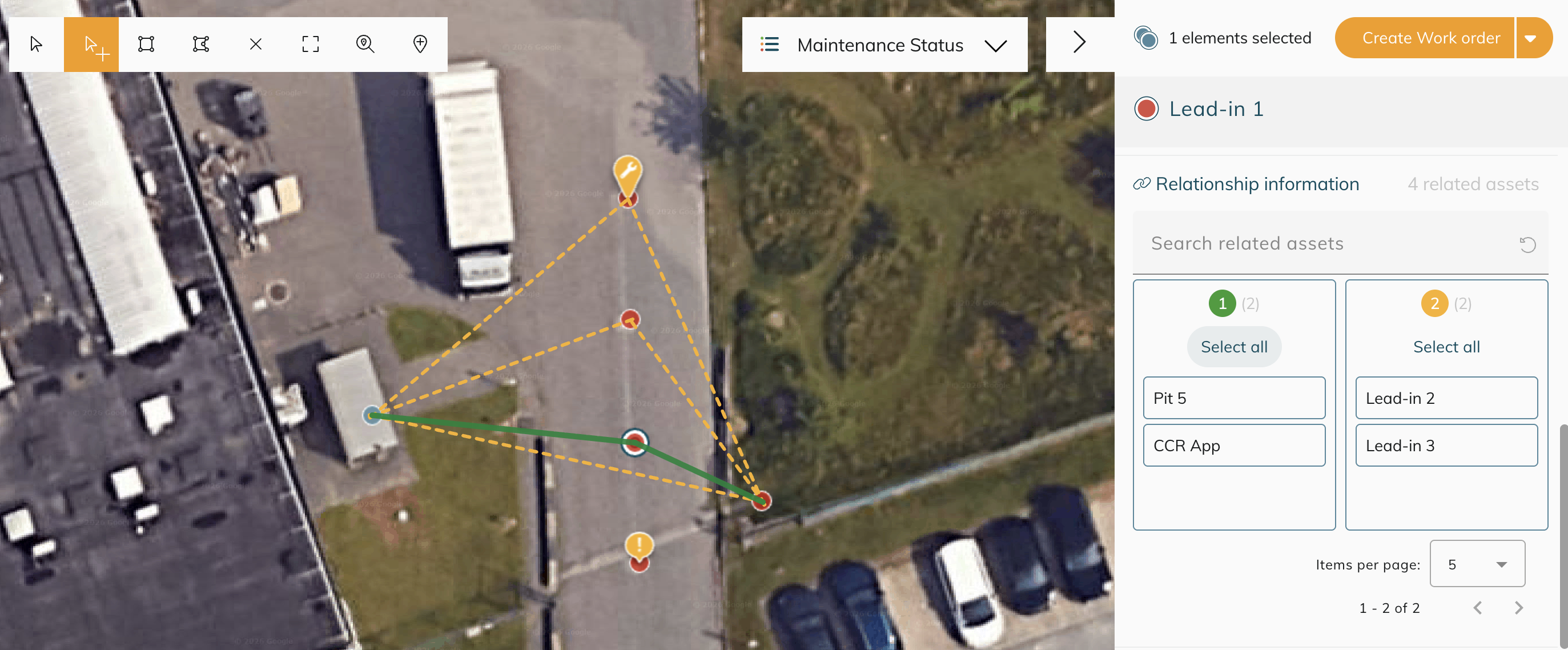
Map visualisation toggle to display relationship lines and control relationship depth (1–3).
Import/Export support via documented CSV/Excel structure (for both types), with validation that target assets exist.
Availability
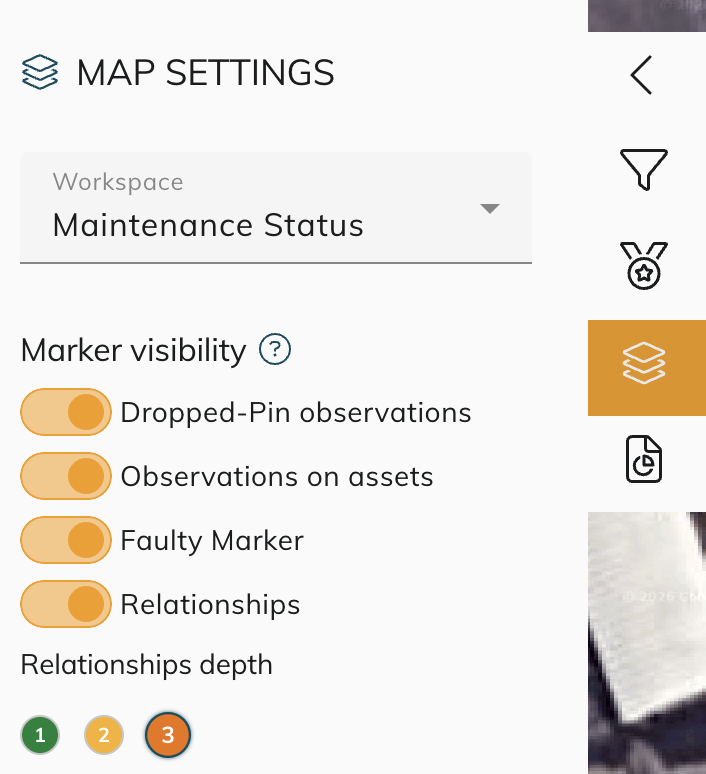
This capability can be activated during your session in the Map tab “Map Settings”.
What’s included in this release
“Related To” (LINKED) relationships
Purpose: fast navigation and contextual awareness (e.g., a light related to a manhole and regulator). No roll-up of status/history.
Limits: up to 500 relationships per asset (configurable).
Map visualisation
MAP SETTINGS > Marker visibility > Relationships: toggle lines between related assets.
Relationships depth: 1, 2, or 3 levels for broader network exploration.
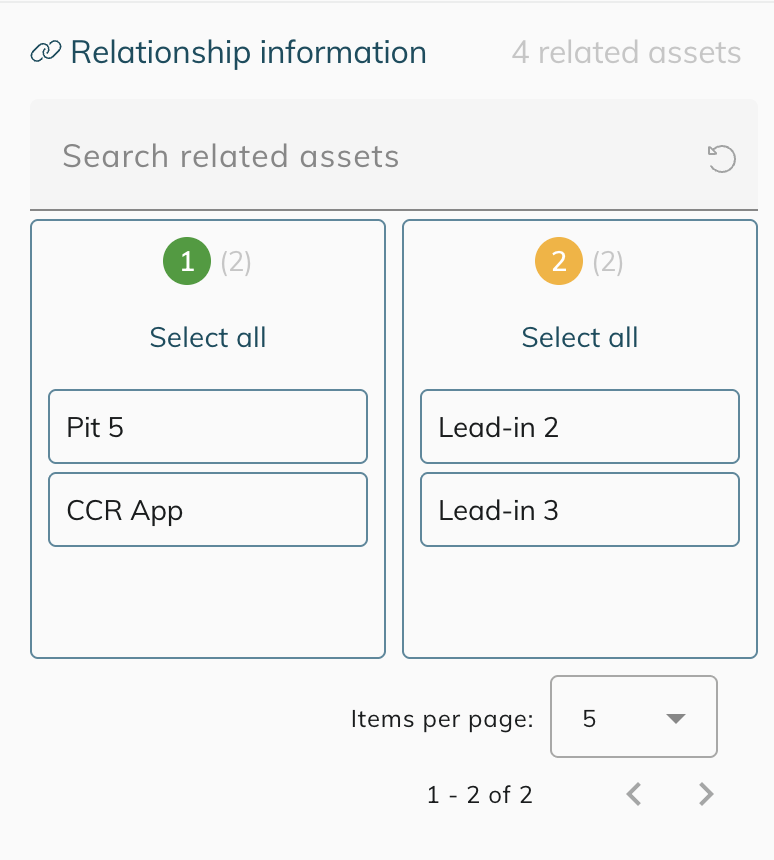
Right-side panel shows Relationship information with counts by depth, Select all, and search within related assets.
UI: Asset relationships tab
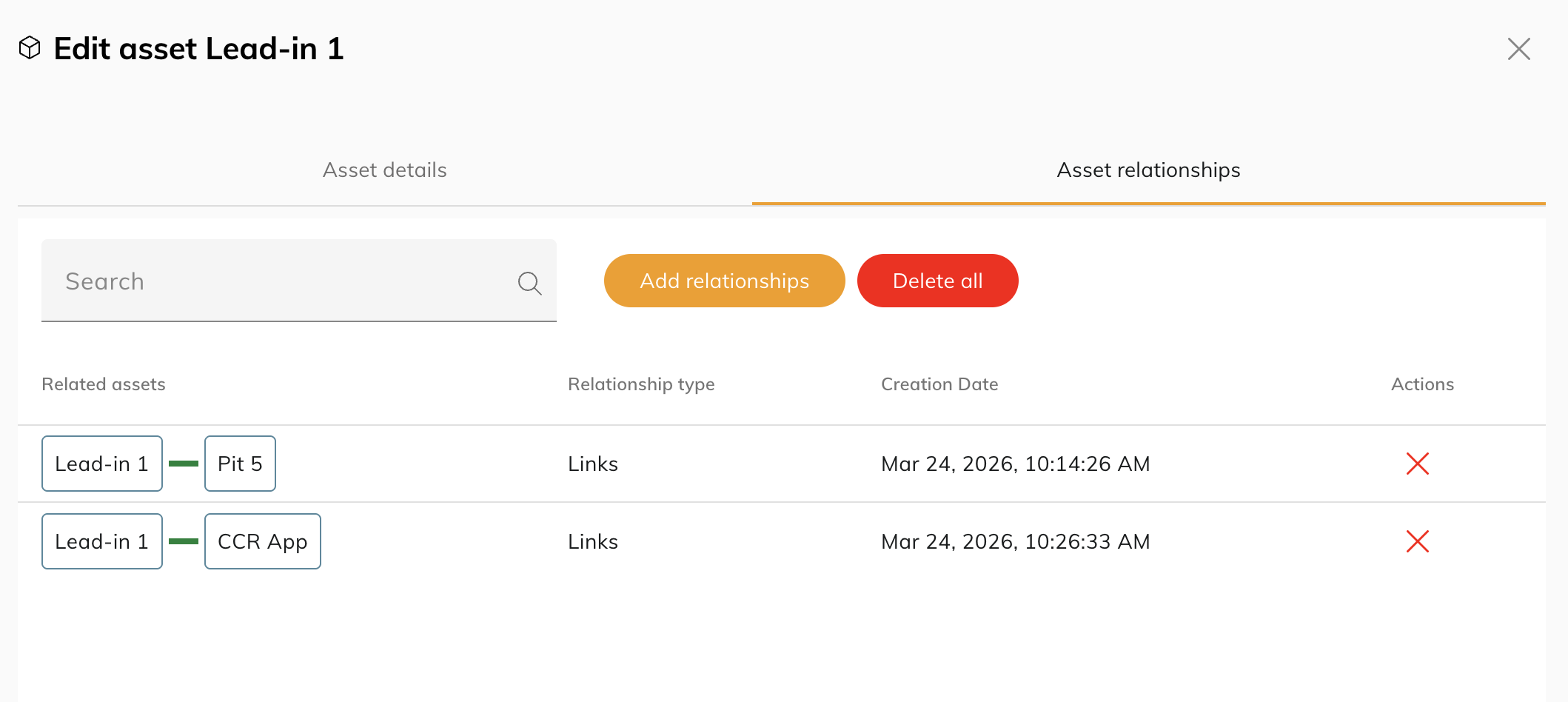
View, search, paginate, and manage related assets for the current asset.
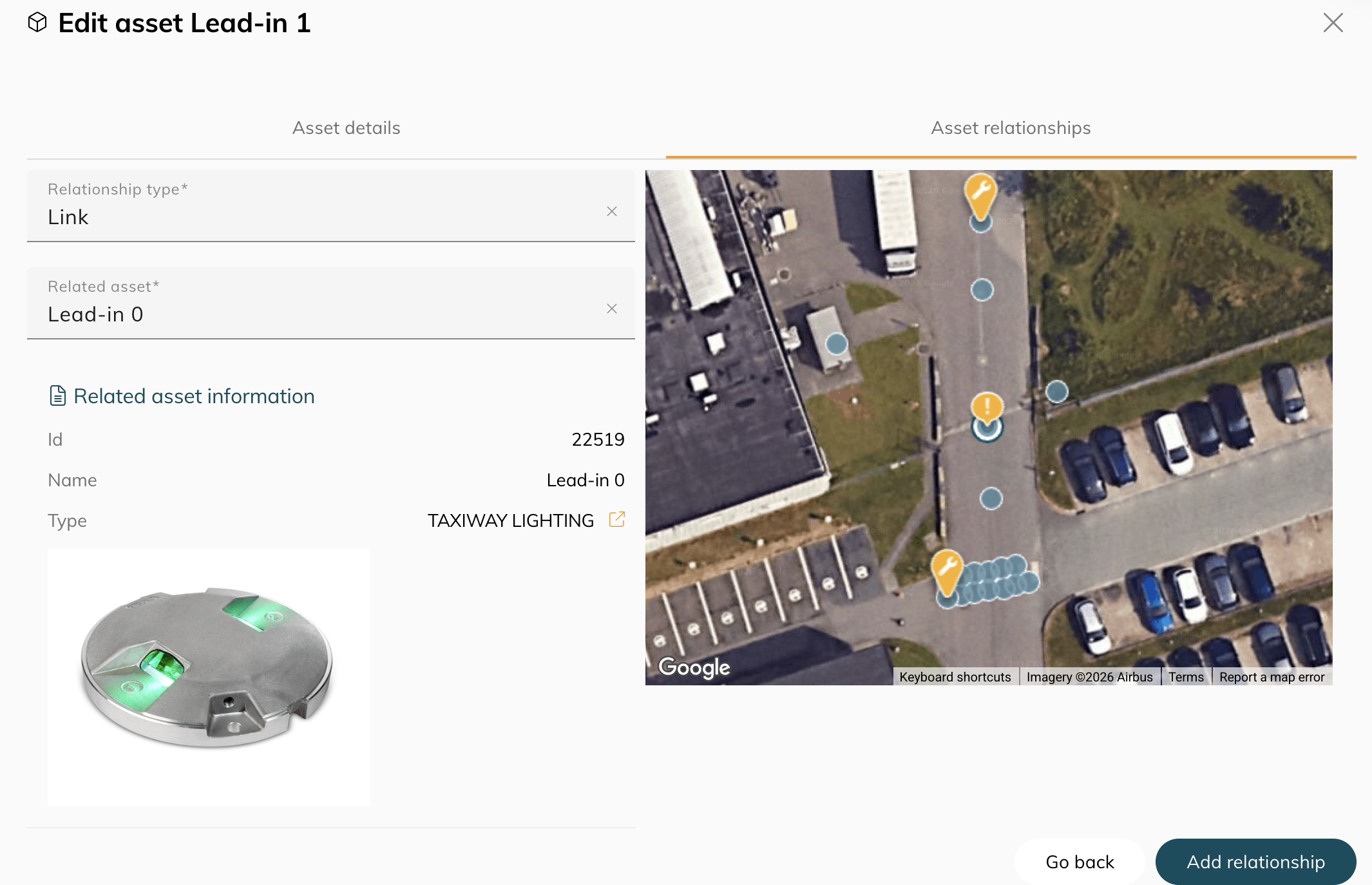
Add relationships: choose Relationship type and select target asset; verify Id/Name/Type before saving.
Delete single relationships (X) or Delete all.
Planned and design-ready (future phases)
Component (CONTAINS) relationships are fully defined conceptually and in UI requirements but will roll out in a later phase.
Components behave like normal assets nested under a parent; not shown as separate map markers.
Aggregation intent (parent worst-case): preventive maintenance, connected data color, faulty markers, and observations.
History will attribute entries to originating component, with potential drill-down.
How to use
Add and manage relationships (Asset details)
Open an asset and go to the Asset relationships tab.
Click Add relationship, choose Relationship type (e.g., Related To) and search/select the related asset.
Verify the target’s Id/Name/Type in the preview and Save.
Use search/pagination to navigate long lists; delete entries individually or Delete all.
Visualise on the map
Open MAP SETTINGS and toggle Relationships under Marker visibility.
Set Relationships depth to 1, 2, or 3 as needed.
Select an asset to open the right-hand Relationship information, use Select all or search to focus.
Import/Export
Supported CSV/Excel format for both relationship types with clear column headers and labels.
Validation ensures only existing assets can be linked; errors report unresolved references.
Limits and configuration
Item | Default/Limit | Notes |
|---|---|---|
Related To per asset | 500 (configurable) | Cascade options under review for advanced networks. |
Components per asset | 30 (configurable) | Future phase; roll-up of status and history planned. |
History logging | Enabled | All changes tracked as asset edits; includes both directions. |
Examples
Relations (Related To)
A light related to a manhole/pit; multiple lights related to a regulator in a substation for quick traceability.
Runway direction related to multiple regulators to understand overall service impact.
Components (future)
Weather station composed of sensors (components) with independent serials and statuses; parent shows worst-case.
High-mast/floodlight asset with LED panels as components; single map marker, component-level maintenance.
Getting started
Head over to the Map settings and toggle on the relationships
Link your first assets via the Asset edit ~ relationships tab (add, verify, save).
FAQ
No. Related To is informational only and does not roll up status or maintenance.
Yes. Use Relationships depth (1–3) in MAP SETTINGS.
No. Components add a way to model parts inside an asset (for example, sensors inside a weather station or LED panels in a high mast). They do not change your existing asset structure or permissions. When available, you will still manage the same assets, with the option to view and maintain their internal parts as components.