

If the CORTEX Service iOS app no longer opens, the most common reason is that the app was not updated in time and its security certificate is no longer valid.
What this means: The installed app version can no longer be used. To fix the issue, you must delete the app and install it again from the web application as a first time use - iOS app and hardware - First time use
How to fix it
-
Delete the CORTEX Service app from your iPhone or iPad.
-
Open your airport’s CORTEX Webapp in a browser and log in.
-
After logging in, click the ? menu.
-
Select Get iOS Application.
-
Download and install the app again.
-
Go to Settings - VPN and Device Management and ‘Trust ADBSafegate’
As described in iOS app and hardware - First time use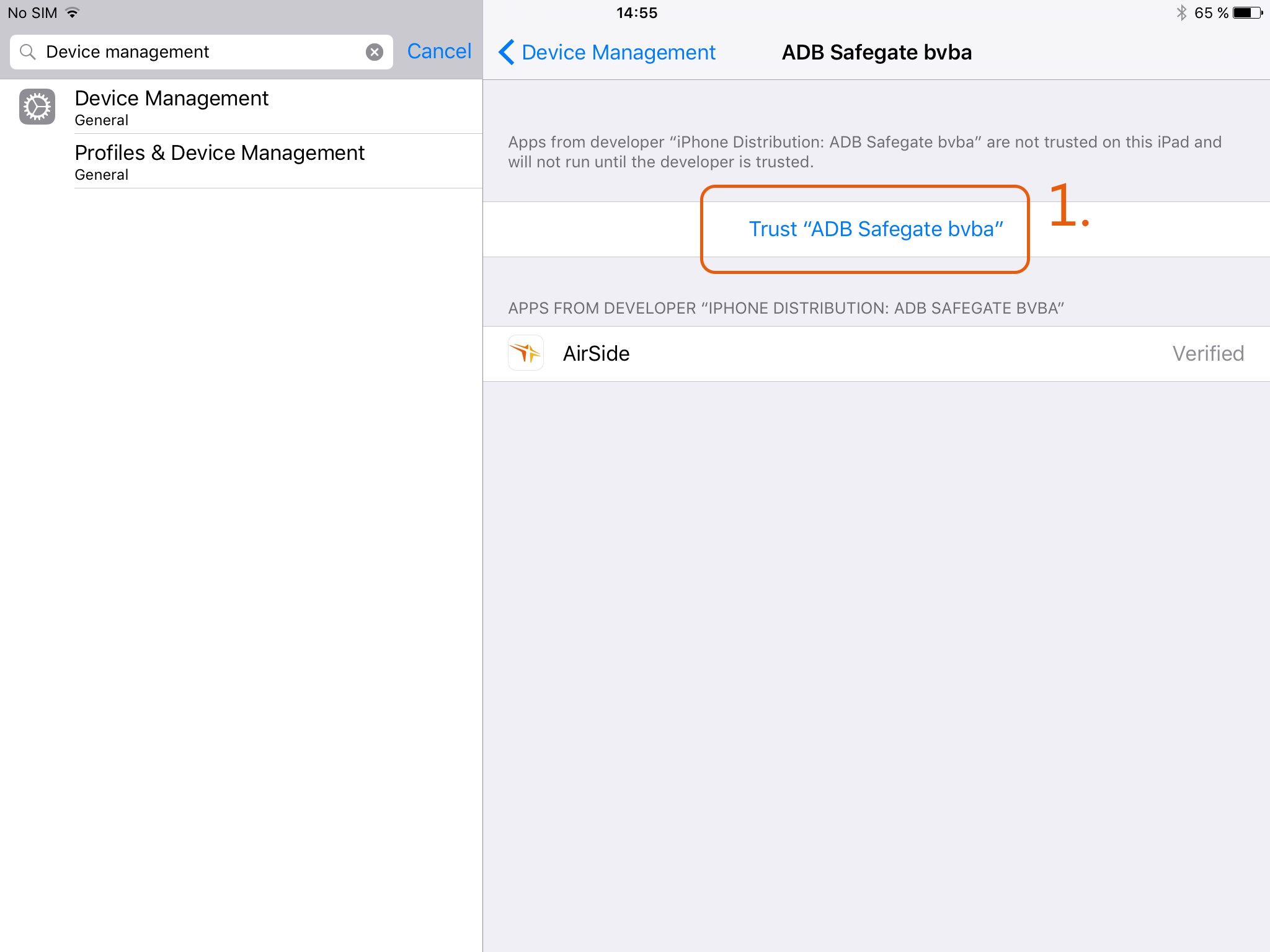
-
Open the newly installed app and log in as usual.
Webapp link format
Use your airport-specific web address. Example:
https://sandbox.adbsg-alis.com/webNg/ios/onboarding
Important: Replace sandbox in the example URL with your airport’s IATA code.
Example: if your airport IATA code is XYZ, use https://xyz.adbsg-alis.com/webNg/ios/onboarding.
If it still does not work
-
Make sure you deleted the old app before reinstalling.
-
Make sure you are using the correct airport IATA code in the URL.
-
Try logging in to the web application first, then use ? → Get iOS Application.
-
If the issue continues, contact your local support team or administrator.
-
More info on iOS app and hardware - First time use