

This release adds a popular request of Editing work orders and two admin-facing improvements: a way to hide unused workspaces, a way to turn off AI features instance-wide. — plus a set of smaller improvements below.
Editing Work Orders
Work orders can now be deleted when they're no longer needed, and key details can be edited.
Archiving a work order
Open a work order and select Archive from the menu. Archiving is available for closed work orders, or open work orders with no registrations recorded yet.
Archived work orders are removed from the active list but not permanently deleted — nothing is lost.
Editing a work order
The following fields can now be edited after a work order has been created:
-
Target date and time
-
Task group
-
Summary
-
Reference
Open the work order and select Edit to update these fields. All changes are recorded in the work order's activity history, so there is always a full audit trail of what changed and when.
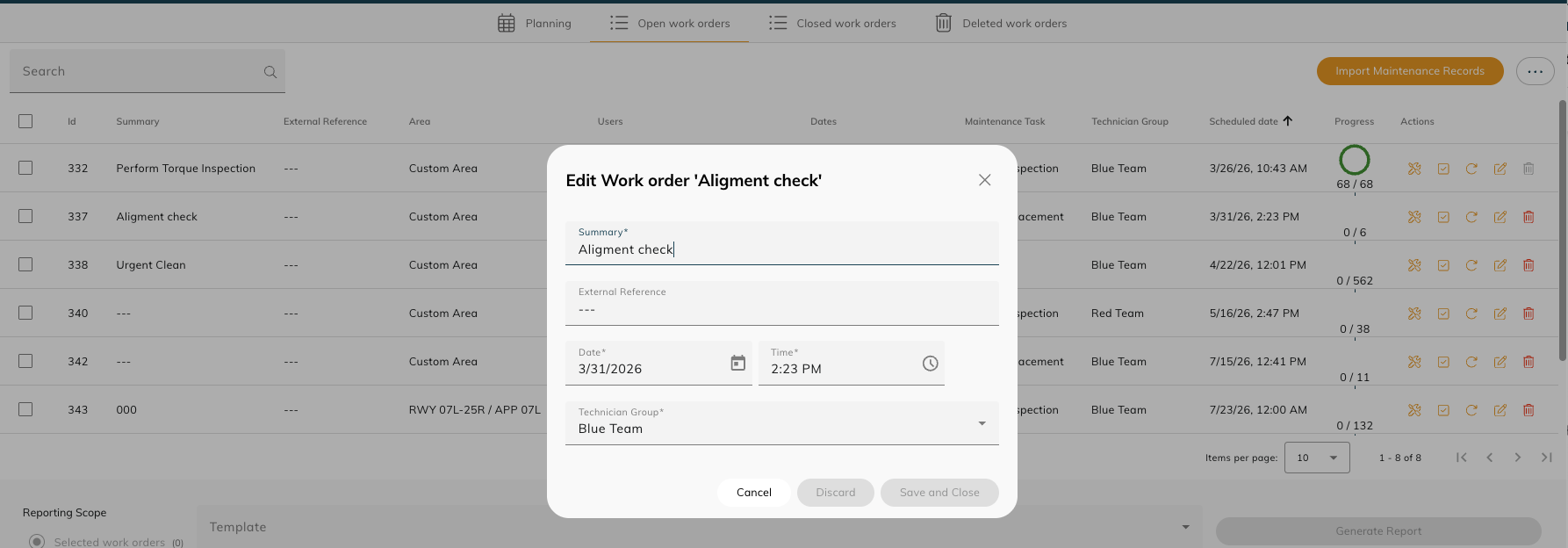
Editing assets and area are not in this release - feel free to give us suggestions on what you would like to see in the future: https://adbsafegate.atlassian.net/servicedesk/customer/portal/11/group/18/create/96
Public API
The same edit fields (Target Date/Time, Task Group, Summary, Reference) are also available through the CORTEX Service public API, so integrated systems can make the same updates.
Workspace Visibility Settings
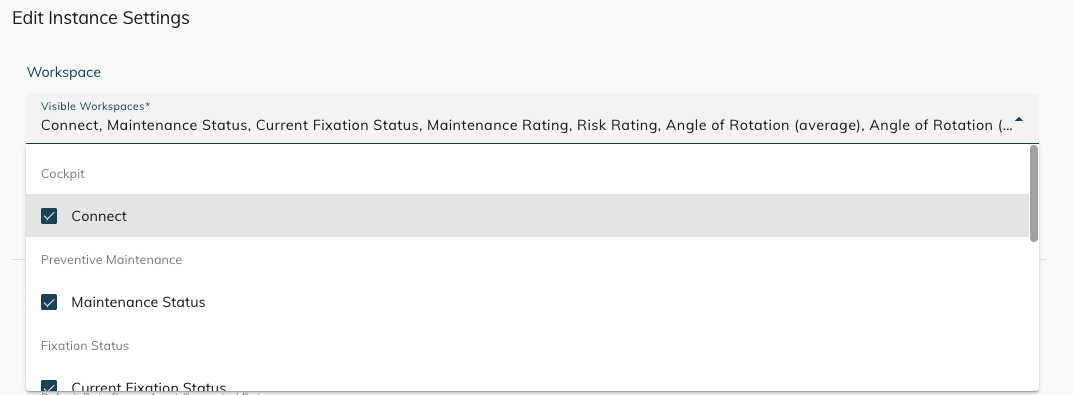
Admins can now control which workspaces are visible across a CORTEX Service instance. Previously, every workspace was shown to every user regardless of which modules an organization actually uses — for example, an airport using only Connect and Maintenance would still see workspaces for modules they don't have. This clutters navigation with irrelevant options. With Workspace Visibility Settings, admins can hide any workspace that isn't in use, so users only see what's relevant to them.
Where to find it
Click the gear icon (top right) > Instance Settings > Workspace Visibility.
How it works
-
A multi-select list shows every workspace available on the instance.
-
Uncheck a workspace to hide it — it disappears from the main navigation for all users immediately.
-
Re-checking a workspace restores it instantly, with no loss of data or configuration.
All workspaces are visible by default. If nothing is changed here, nothing changes for the customer — this is opt-in cleanup for instances that don't use every module.
Who can change this: instance administrators only.
AI Feature Toggle
Admins can now disable all AI features across a CORTEX Service instance from a single setting — useful for regulated environments or contracts that require AI functionality to be turned off.
Where to find it
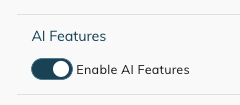
Click the gear icon (top right) > Instance Settings > Enable AI Features.
How it works
-
Turning the toggle off immediately hides all AI-related UI elements for every user on the instance.
-
Turning it back on restores all AI features immediately, with no configuration lost.
AI features are enabled by default. This toggle only hides the AI UI — it does not disable the underlying AI infrastructure.
Who can change this: instance administrators only.
Report Export — Date Range
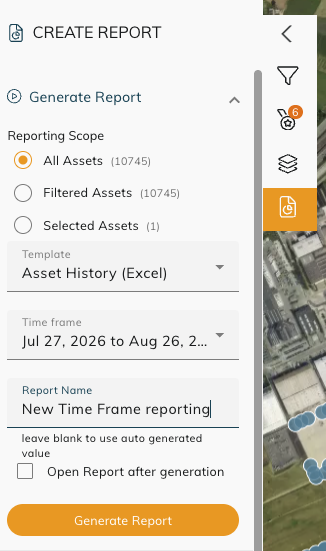
Report export now supports a custom date range for asset history, so you can scope an audit report to just the period you need instead of exporting the full data set.
Where to find it
Open the report export screen and use the new date range selector before generating an asset history report.
How it works
-
Select a start and end date — the end date is inclusive through 23:59:59.
-
The date range only applies to asset history exports — other report templates are unaffected.
-
If no range is selected, the export still includes all data, exactly as before.
Relationship — Filter per Circuit
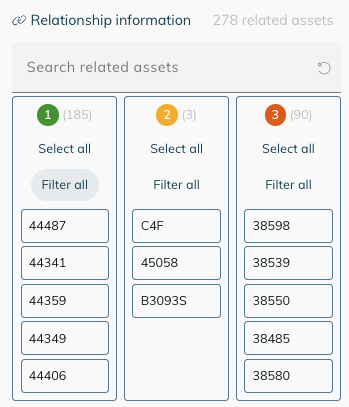
You can now filter the map by relationship value from the Relationships panel, making it easy to isolate a single circuit for fault localisation.
Where to find it
Open the Relationships tab and select Filter All, then choose the relationship value you want to isolate.
How it works
-
Only assets matching the selected relationship value remain visible on the map.
-
The active filter appears as a chip in the filter panel, so it's always clear what's hiding assets from view.
-
Clearing the filter restores the full map view.
Asset Connection State — Staleness Threshold Alignment
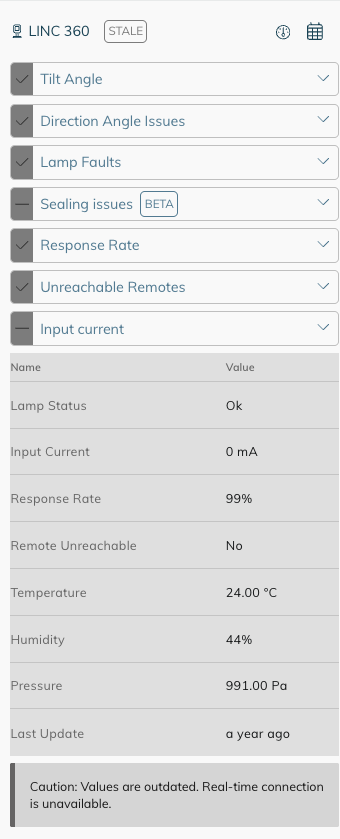
We aligned how connection status is determined for LINC 360, PAPI, and CCR assets, so stale versus actively-connected states now display consistently across the map and Cockpit tiles.
How it works
-
Green — the asset's last heartbeat was received within the configured threshold (1 hour 10 minutes for LINC 360).
-
Grey — no heartbeat has been received beyond that threshold. This means the connection state is unknown — it is not a fault.
-
Red — unchanged: a confirmed fault or error reported by the device.
This change affects only how the connection state is calculated and displayed — it does not change how faults or alarms are generated or cleared.
Have a suggestion or question about any of these features? Send it to us through the support portal.