

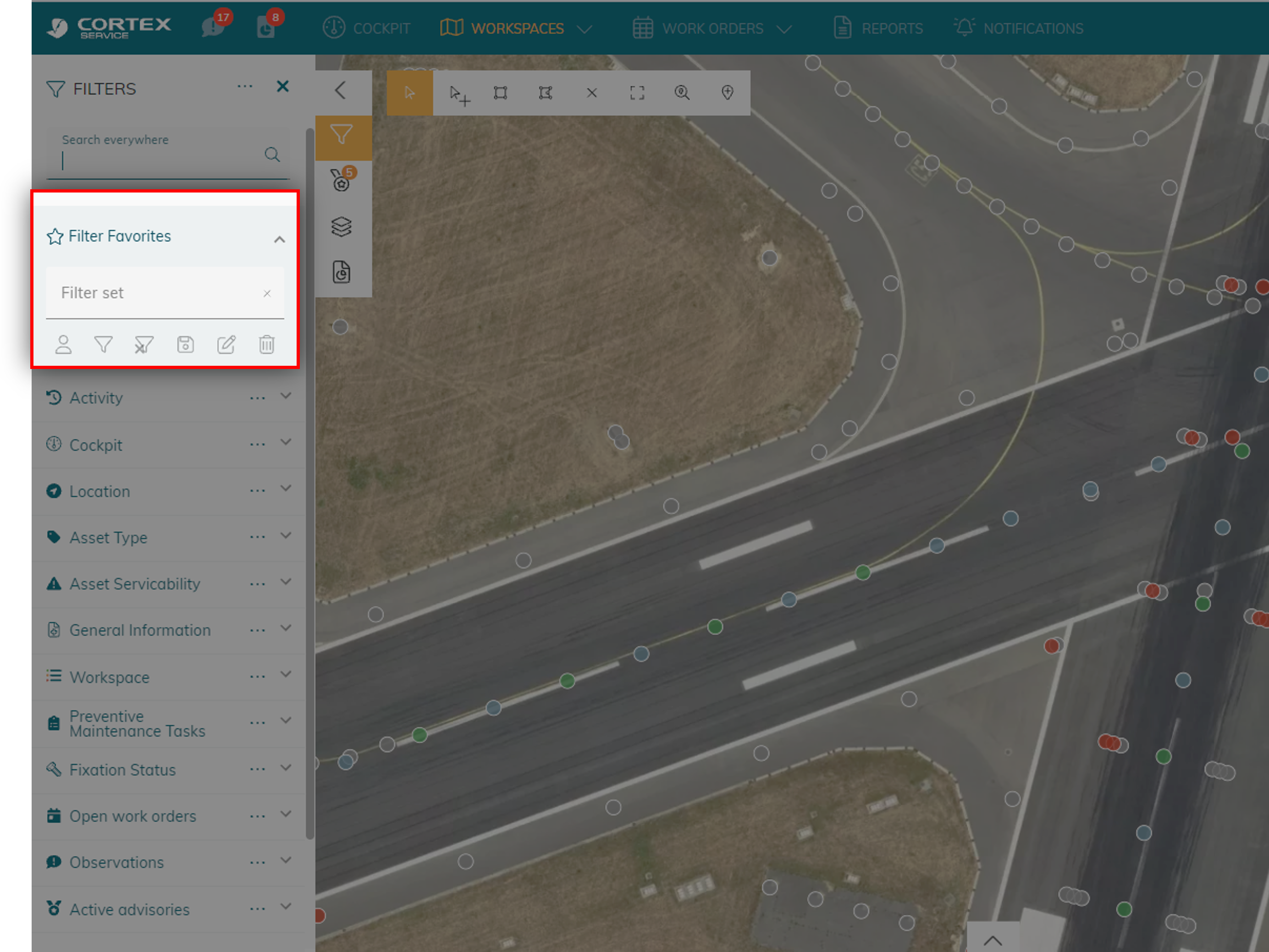
Filter Favorites let you save a set of filters and get back to it in one click, for example "Runways only" or "Pavement Observations". No more rebuilding the same filters every time you log in.
You find it at the top of the Filters panel, under Filter Favorites ⭐.
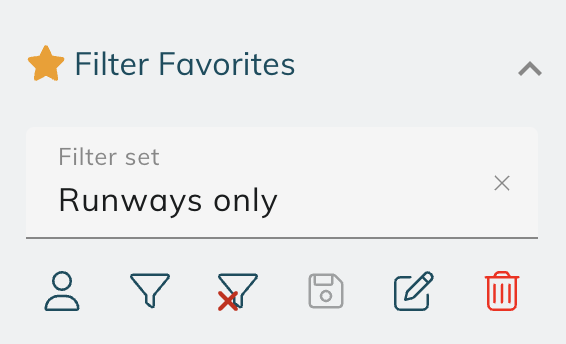
1. The toolbar
|
Icon |
Action |
What it does |
|---|---|---|
|
👤 / 👥 |
Visibility |
Shows if the filter set is private (👤) or public (👥). Click to change. |
|
▽ |
Apply |
Applies the selected filter set to the map. |
|
▽✕ |
Clear filters |
Clears all active filters. |
|
💾 |
Save |
Saves your current filters into the selected filter set. Only active when something has changed. |
|
✏️ |
Edit name |
Renames the selected filter set. |
|
🗑️ |
Delete |
Deletes the selected filter set. |
2. Create a filter set
-
Set up your filters as usual (Location, Asset Type, Observations, …).
-
In Filter Favorites, type a name in the Filter set field.
-
Click Save 💾.
If no filter set has that name yet, a new one is created with your current filters.
3. Use a filter set
-
Click the Filter set field. Your saved sets are listed under My filter sets.
-
Select one. The filters are applied and the map updates.
The filter set is also part of the page link, so you can bookmark it. The link keeps working after you rename the filter set.
4. Update a filter set
-
Select the filter set.
-
Change the filters.
-
Click Save 💾 to overwrite the filter set with the new selection.
5. Rename a filter set
-
Select the filter set and click Edit name ✏️.
-
Type the new name.
-
Click Save 💾, or ✕ to cancel.
6. Share a filter set with colleagues
-
Select the filter set and click the Visibility icon 👤.
-
Confirm Change filter set visibility?
The filter set becomes public and is visible to other users. The icon changes to 👥. Click it again to make it private.
7. Delete a filter set
Select the filter set and click Delete 🗑️.
Good to know
-
Filter sets are private by default. Only you can see them until you make them public.
-
When you log in, no filter set is active. Everything is visible until you pick one.
-
Click ✕ in the Filter set field to deselect the current filter set.