

Goal: Track Progress and Status of Open Work Orders on the Map
Overview
The Work Orders workspace shows the progress of your open work orders directly on the map. Every asset is colour-coded by the status of the work planned on it, so you can see at a glance which lights are done, which are on schedule and which are running late — without opening each work order.
Typical uses:
-
Follow the progress of a maintenance campaign (for example a torque round or lamp replacement) on a runway or taxiway.
-
Spot overdue work and prioritise the next shift.
-
Register completed maintenance straight from the map and see the result immediately.
Opening the workspace
-
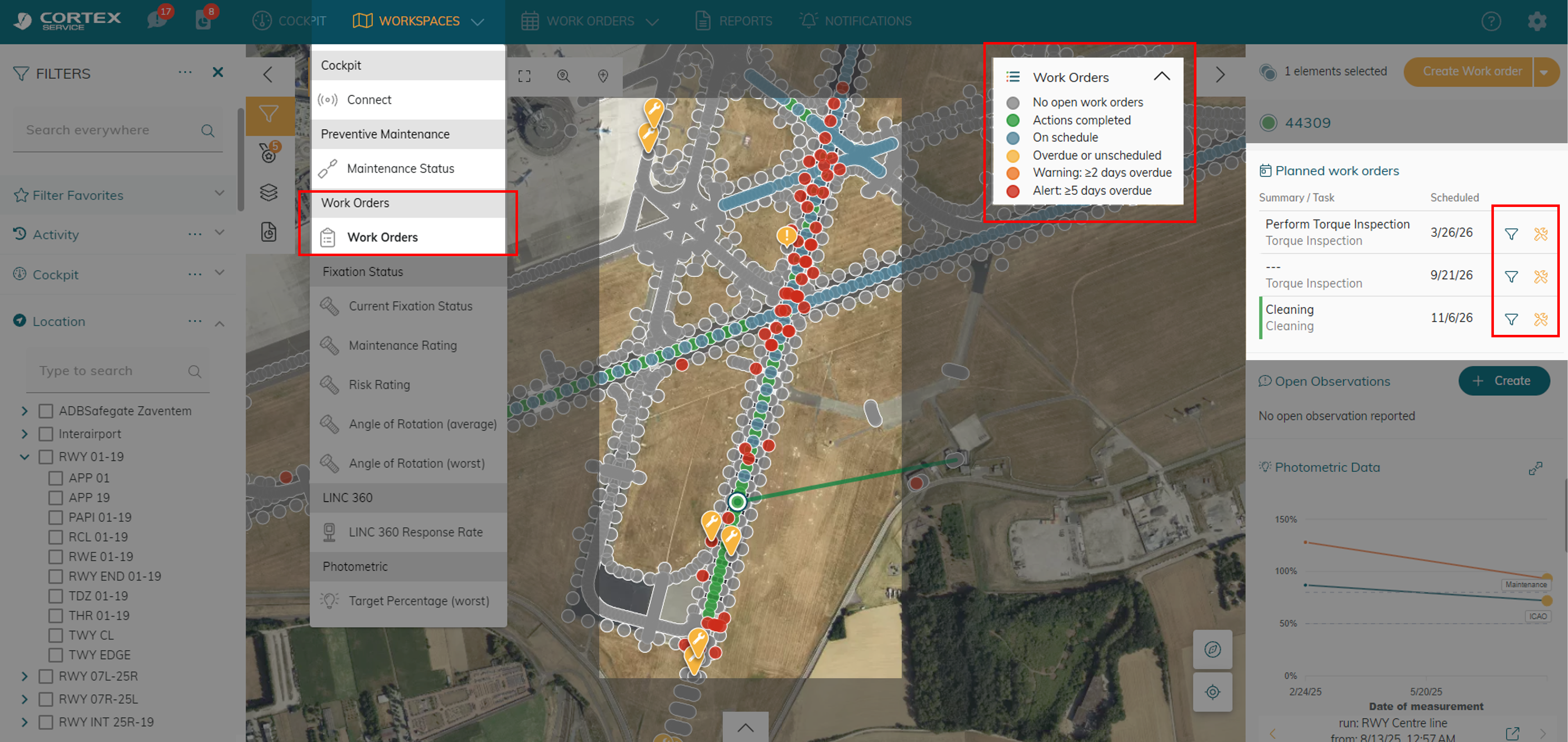
In the top menu, open Workspaces.
-
Under Work Orders, select Work Orders.
The map switches to the Work Orders colour scheme and the Work Orders legend appears in the top-right corner of the map.
If the workspace is not visible in the menu, your administrator can enable it in Instance Settings → Visible Workspaces (see Administrator settings).
Status colours
Each asset gets the colour of the work still planned on it.
|
Colour |
Status |
Meaning |
|---|---|---|
|
⚪ Grey |
No open work orders |
The asset is not part of any open work order. |
|
🟢 Green |
Actions completed |
The work for this asset has been registered. The work order itself may still be open for other assets. |
|
🔵 Blue |
On schedule |
Work is planned and the scheduled date has not yet passed. |
|
🟡 Yellow |
Overdue or unscheduled |
The scheduled date has passed, or the work order has no scheduled date. |
|
🟠 Orange |
Warning |
Work is overdue by the warning threshold or more (default: 2 days). |
|
🔴 Red |
Alert |
Work is overdue by the alert threshold or more (default: 5 days). |
The warning and alert thresholds are configurable per instance. The legend always shows the values that apply to your instance.
Zoom levels: when zoomed in, each individual asset is coloured. When zoomed out, the status is summarised on the area (for example a whole runway segment).
Showing and hiding statuses
Click a status in the Work Orders legend to hide or show the assets with that status on the map.
Example: hide everything except Actions completed to see exactly which lights have already been done on a runway.
The legend can be collapsed with the arrow in its header.
Asset details — Planned work orders
Select an asset on the map to open the asset details pane. The Planned work orders section lists every open work order that includes this asset:
|
Column |
Description |
|---|---|
|
Summary / Task |
Work order summary and the maintenance task (e.g. Asset replacement, Torque Inspection). |
|
Scheduled |
The scheduled (target) date of the work order. |
The coloured bar in front of each row matches the status colour on the map.
Each row has two quick actions:
-
Filter (funnel icon) — adds this work order to the Open work orders filter, so the map shows only the assets in this work order. Click again to remove it from the filter.
-
Record Maintenance (wrench icon) — opens the Register Maintenance dialog to record the work for this work order.
Registering maintenance from the map
-
Select one or more assets on the map (click, or use the selection tools in the map toolbar).
-
Use Record Maintenance in the Planned work orders section, or open the action menu next to Create Work order and choose Register Maintenance.
-
In the dialog, choose the Work order, the Maintenance Scope and the Maintenance Task:
-
Selected Assets — only the assets you selected.
-
Selected Assets in Selected Work Order — only the selected assets that belong to the chosen work order.
-
All Assets in selected work order — every asset in the work order.
-
-
Click Register Maintenance.
A confirmation message appears and the assets turn green (Actions completed) on the map right away.
Filtering by work order
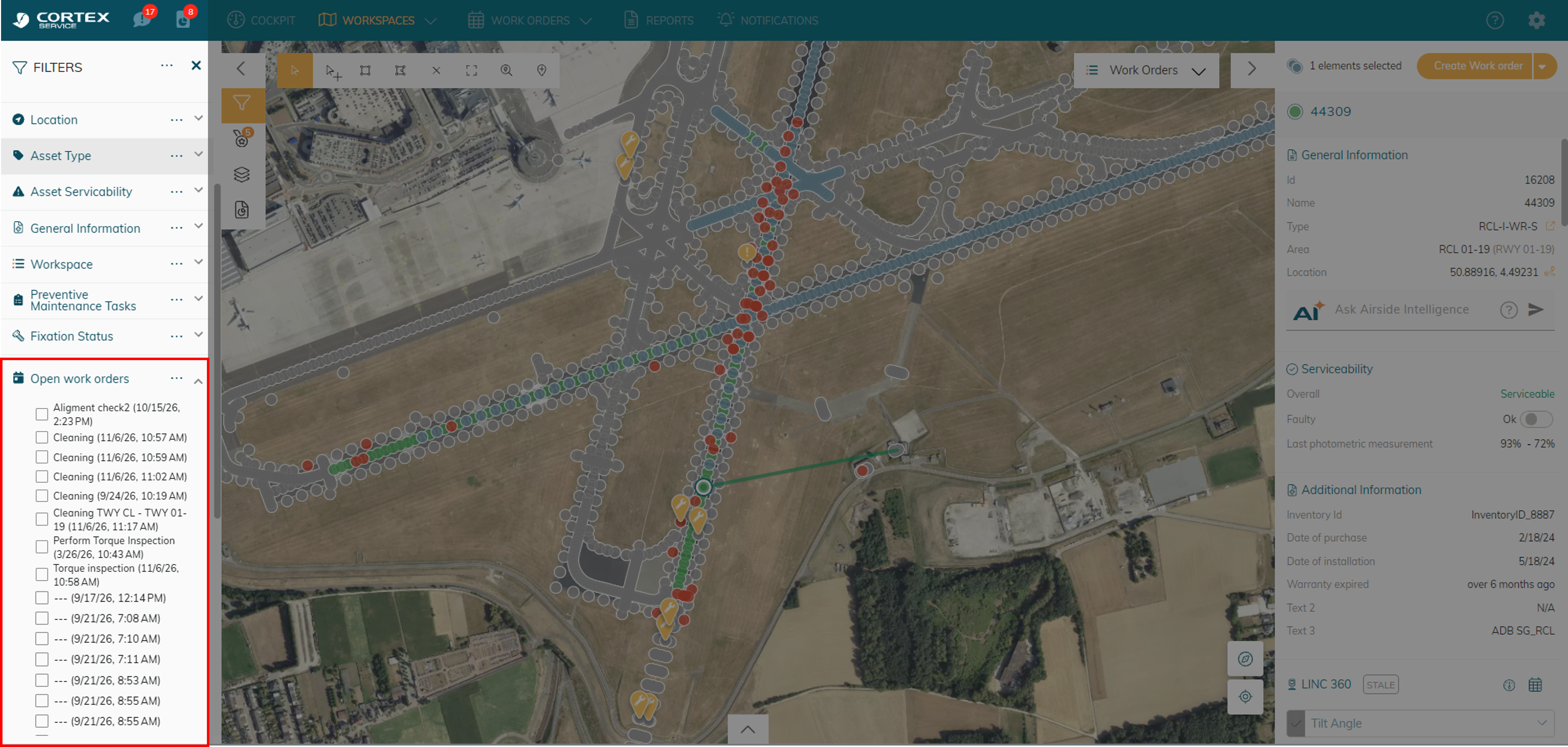
The Open work orders filter in the Filters panel lists all open work orders with their creation date. Tick one or more work orders to show only their assets, or tick No open work orders to show assets without planned work.
This filter combines with all other filters (Location, Asset Type, Asset functions, etc.).
Administrator settings - how to change the alert default colours?
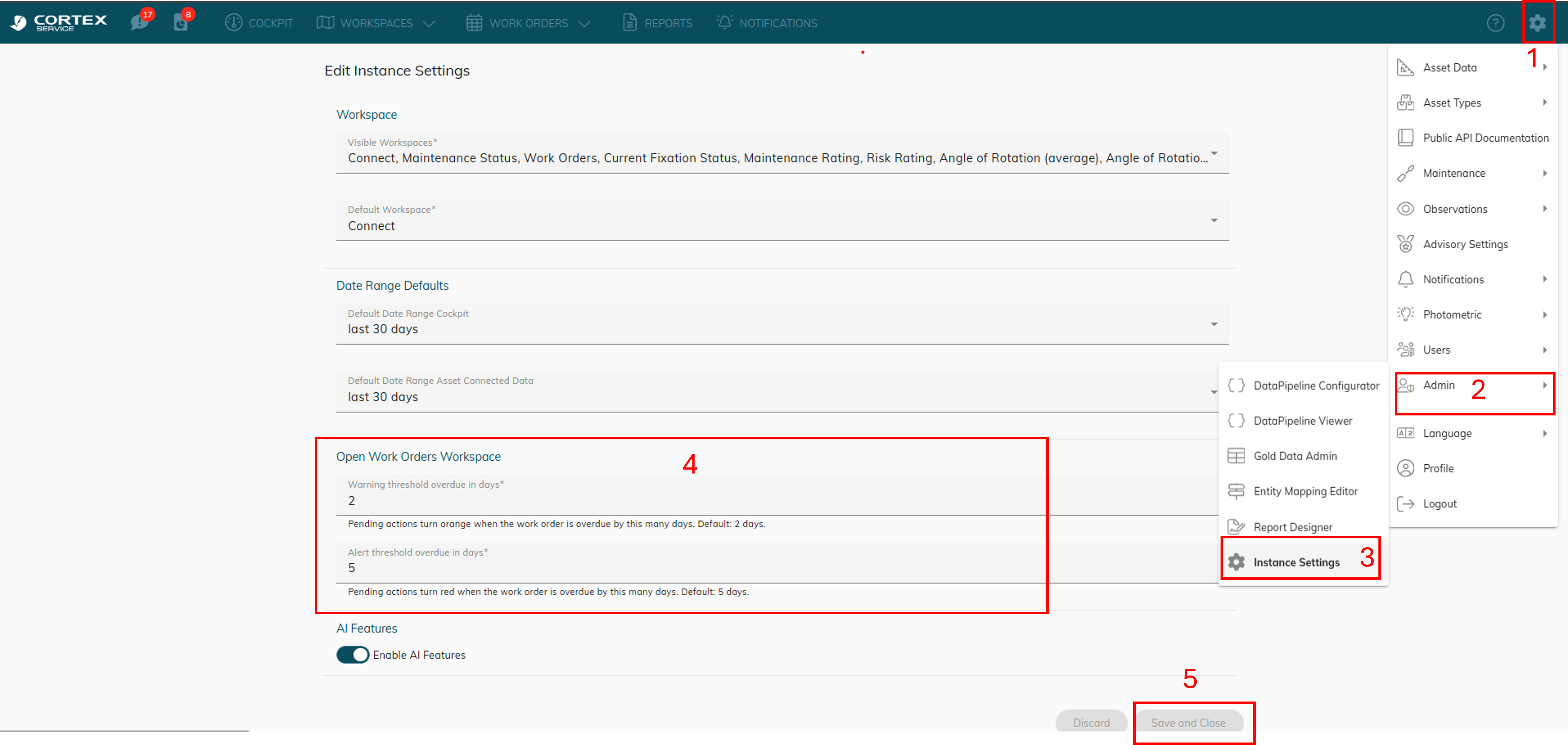
Go to Settings (gear icon) → Admin → Instance Settings.
|
Setting |
Section |
Description |
Default |
|---|---|---|---|
|
Visible Workspaces |
Workspace |
Include Work Orders to make the workspace available to all users. |
All visible |
|
Default Workspace |
Workspace |
Optionally set Work Orders as the workspace that opens by default. |
— |
|
Warning threshold overdue in days |
Open Work Orders Workspace |
Pending actions turn orange when the work order is overdue by this many days. |
2 |
|
Alert threshold overdue in days |
Open Work Orders Workspace |
Pending actions turn red when the work order is overdue by this many days. |
5 |
Click Save and Close to apply. Changes apply to all users of the instance.
Tips
-
Combine the workspace with Asset functions or Location filters to follow progress per runway or per function (e.g. only runway edge lights).
-
Use the legend to show only Alert assets as a daily "what is late" view.
-
Give every work order a scheduled date — work orders without one are shown as Overdue or unscheduled (yellow).