

When we show the torque values that where applied on assets in the ALIS Webapplication - there is a green corridor that gives you an indication on where the torque values should be at. If the values are outside of this green corridor the asset will show up as a "Warning " for the Fixation quality in the fixation status filter because the asset was not torqued under the correct conditions.
This guide will tell how the green corridor works and how you can modify it.
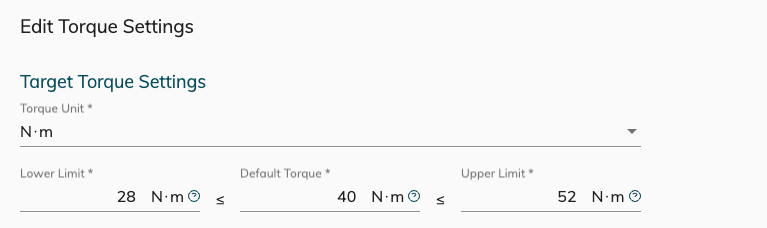
The acceptable section for good torque values is based on the Target torque and tolerance as defined On the Webapp Torque settings.
Step-by-step guide
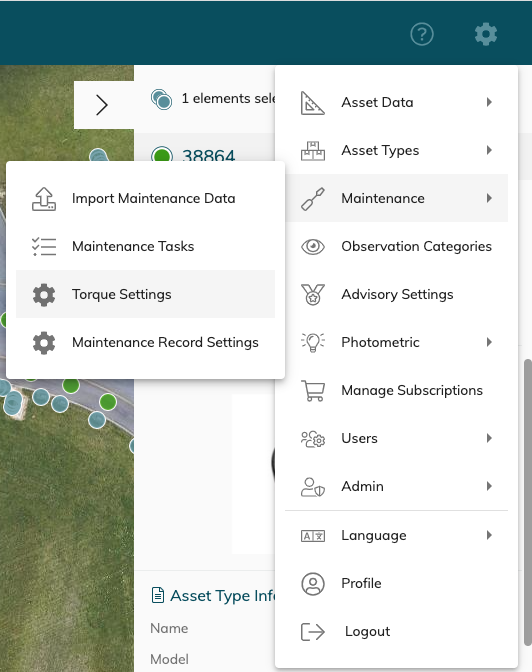
To change the torque limits select the Settings Icon on the top Right > Maintenance > Torque Settings.
Edit the lower , target and high limit accordingly .
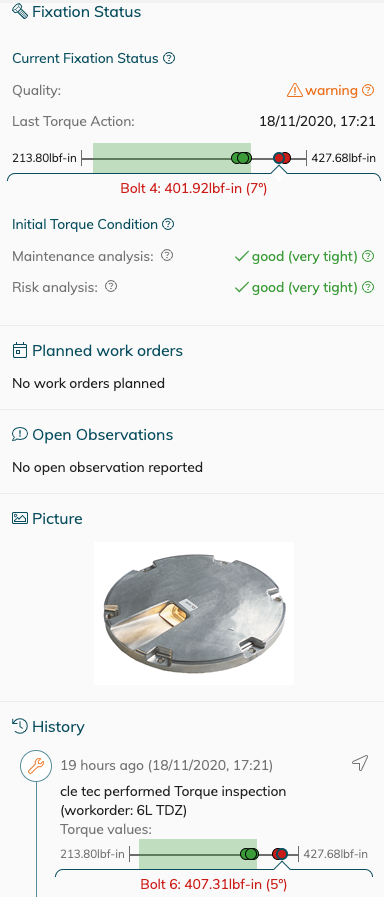
When new Torque values are registered the Green corridor will be in accordance with the new torque settings and it's tolerance.
If you use different torque values for different assets - make sure to choose a target torque and tolerance that would accommodate both conditions.
Related articles